YMFTHAI-FAQ โปรแกรม ERPIY POS How to edit the receipt template address YMF

How to edit the receipt template address YMF

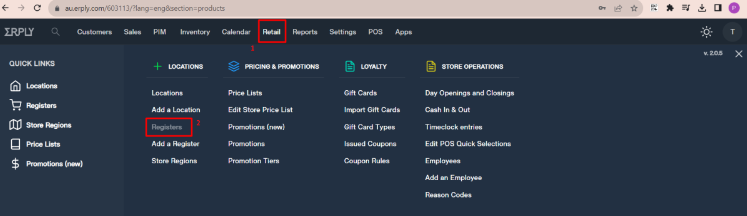
1.Back office Erply > Retail > Register
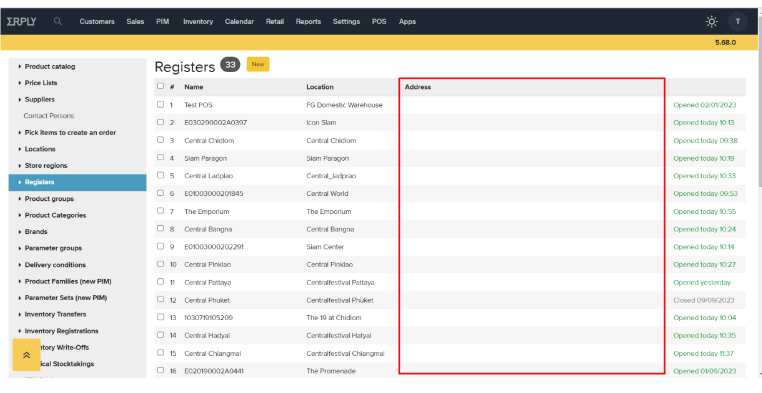
2. Address is empty → need to fill the address detail first
3. Select the location register > fill the address information > SAVE
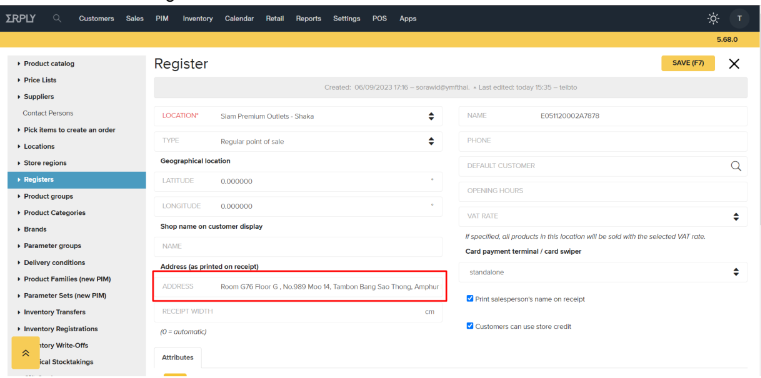
After fill all the register locaiton address

-On this case Teibto has edit the latest template (11 sep 2023) on “Siam Premium Outlets –
shaka” you able copy the Schema to clipboard on this location and paste to other location

4. Go to POS on “Siam Premium Outlets – Shaka” > setting > debug
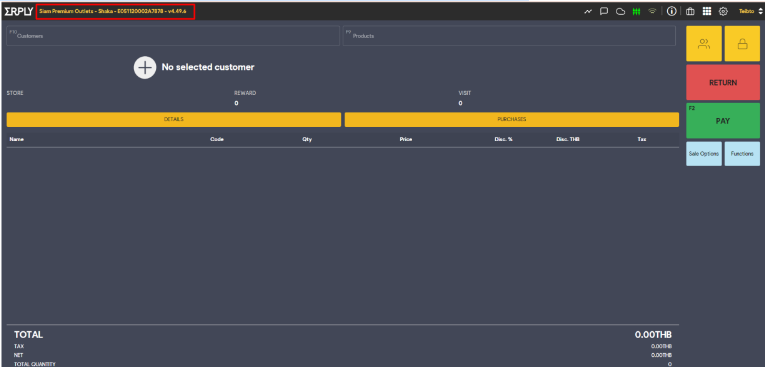
5. Scroll down to see the patchscript template
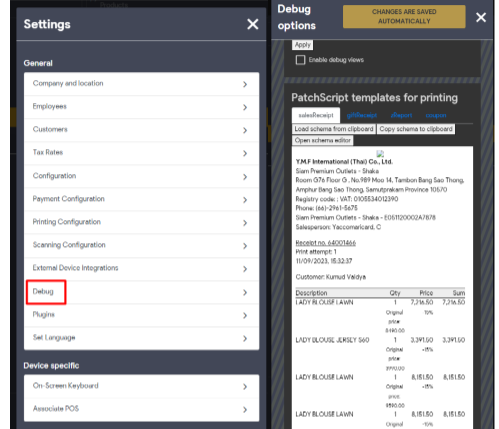
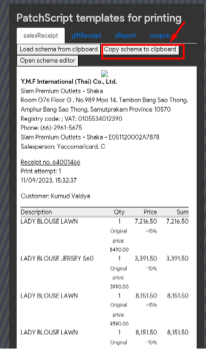
6. Press Copy Schema to clipboard
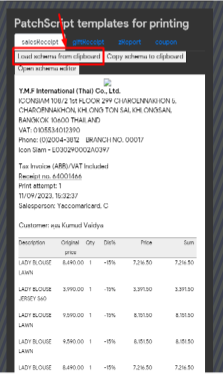
7. Then change the branch and go to setting > Debug > scroll down and click “Load Schema from
clipboard” > then click “Open schema editor”
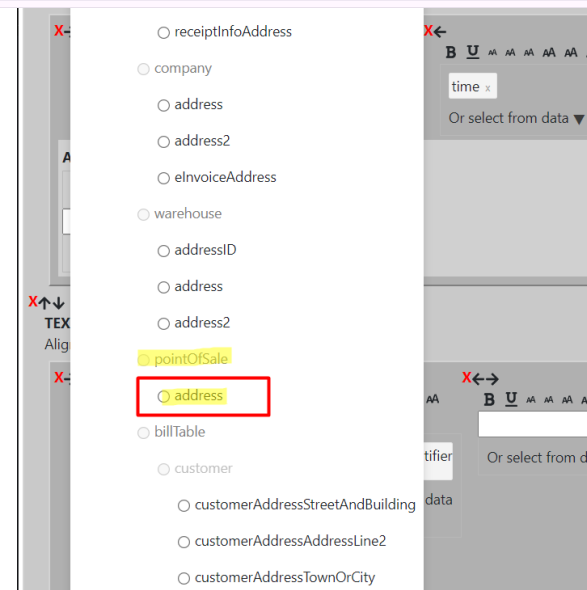
8. You will see the text that manual type address on the schema do step by step as the photo
attach
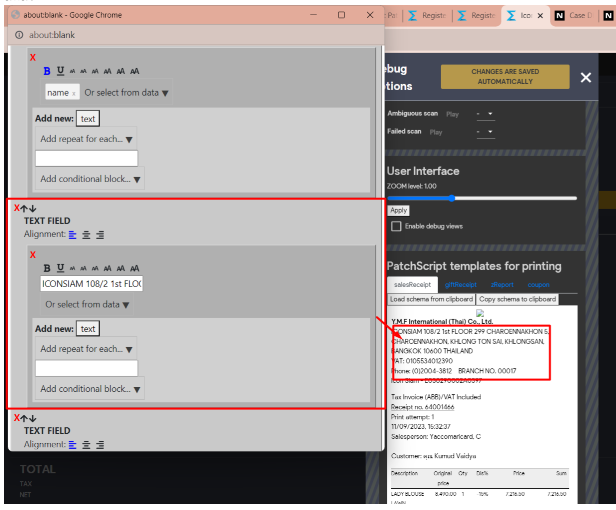
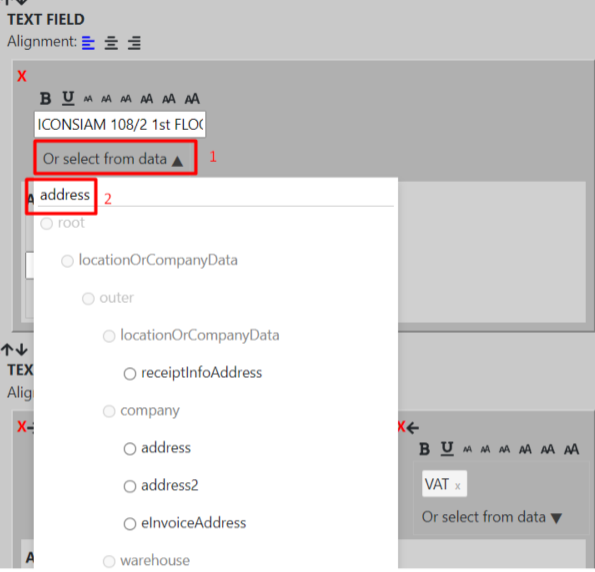
-Choose “address” then > Save the Schema on Patchscript on POS → FINISH

// ข้อมูลจะแสดงตามที่ใส่ไว้ใน Erply Backoffice ที่กรอกใน Register ข้างต้น //

//ต้องทำทีละสาขา ไม่สามารถทำในครั้งเดียวได้//

Related Post

การพักบิลของโปรแกรม ERPLYการพักบิลของโปรแกรม ERPLY

2. เลือกทำการSave sale รายการขายนั้นจะถูกพักไว้ในระบบ 3. เมื่อต้องการนำรายการขายนั้นมาชำระเงินให้เลือกที่ Function 4. เลือก Pending bill 5. ระบบจะขึ้นรายการขายที่พักไว้ขึ้นมา ให้เลิกรายการที่ต้องการชำระ 6. รายการที่พักไว้จะแสดงขึ้นในหน้า POS เพื่อทำการชำระต่อไป จบการพักบิล

วิธีการสร้าง Pricelist ใหม่ ของโปรแกรม ERPLYวิธีการสร้าง Pricelist ใหม่ ของโปรแกรม ERPLY

1. Go to Erply (Back Office) : https://au.erply.com/603113/?lang=eng 2. Retail Chain → Price List 3. Click New for create new Pricelist -สามารถใส่ชื่อ pricelist, กำหนดวันและเวลาที่ต้องการใช้ ้pricelist ได้ -เลือก Active เพื่อทำการ Active

วิธีทำการขายสินค้าใน ERPLYวิธีทำการขายสินค้าใน ERPLY

การขายสินค้า 2. กรณีที่ลูกค้าเป็นสมาชิกมากกว่า 1 หมายเลขให้เลือกตามแบรนด์ที่ต้องการชำระสินค้าในครั้งนั้นๆ 3.เมื่อกดเลือกแล้วระบบจะแสดงชื่อลูกค้าที่หน้าจอขายโดยพนักงานสามารถกดที่ชื่อลูกค้า เพื่อตรวจสอบรายละเอียดของลูกค้าได้ตามรูป 4. แสกนสินค้าที่ต้องการชำระ 5. ระบบจะแสดงสินค้าที่เลือกและราคาขายโดยอัตโนมัติในกรณีที่มีรายการส่งเสริมการขาย ระบบจะแสดงโดยอัตโนมัติเช่นกัน (ยกเว้นรายการโปรโมชั่นที่ต้องให้พนักงานเลือกกดใช้งาน 6. เมื่อเลือกสินค้าที่ต้องการชำระครบถ้วนแล้วให้กดที่ปุ่ม PAY เพื่อทำรายการชำระเงิน 7. กรอกหมายเลขของพนักงานขายที่ต้องลงในกล่องระบุพนักงานขายแล้วกด Done ตามรูป 8. ระบบจะแสดงหน้าต่างโดยชำระเงินโดยให้เลือกชำระเงินโดยตามรูปแบบของการชำระเงินของลูกค้า เช่น เงินสด (Cash) หรือบัตรเคดิต (Card) 9. กรอกจำนวนเงินตามที่ค้าชำระ